Overview
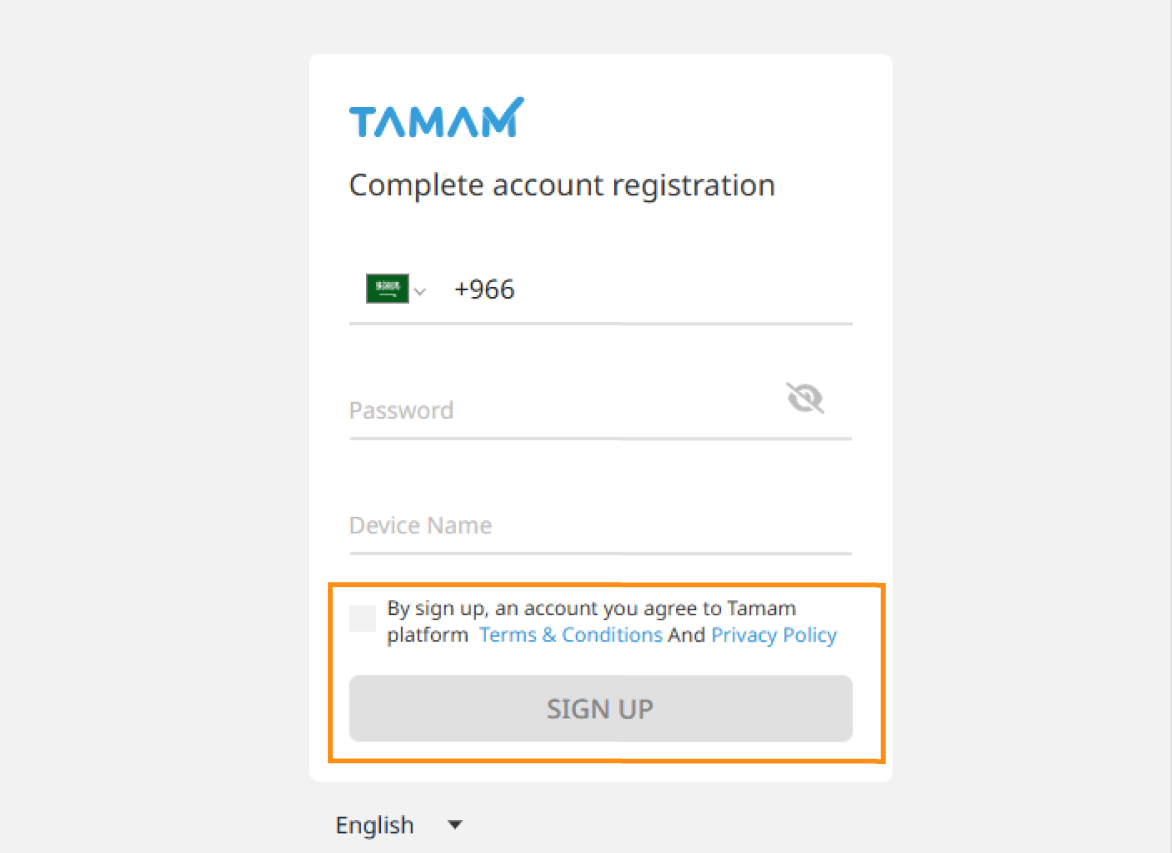
When a new user is added by the organization's administrator, the system automatically sends an invitation to the user's email address. The invitation allows the user to accept the invitation and complete the account setup process, including creating their own password.
Steps
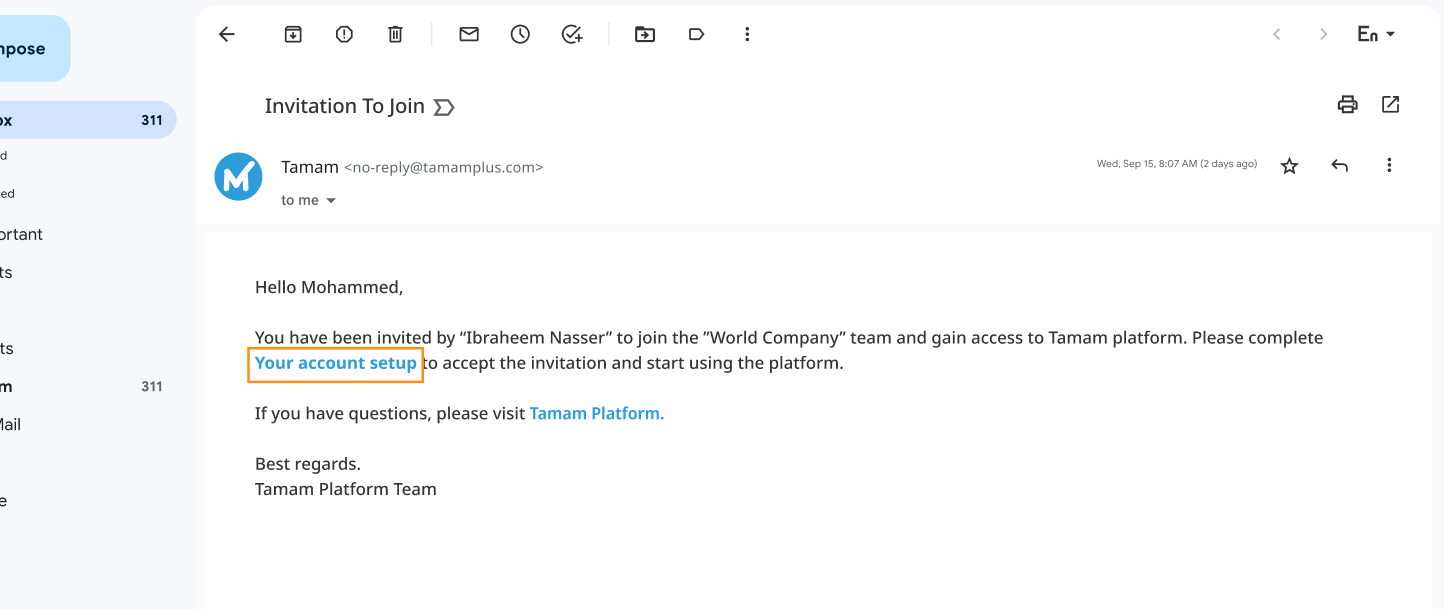
Invitation to Join via Email
When you are added as a new user, an invitation to join the organization will be sent to your registered email address. Open the email and click the "Set Up Your Account" button.
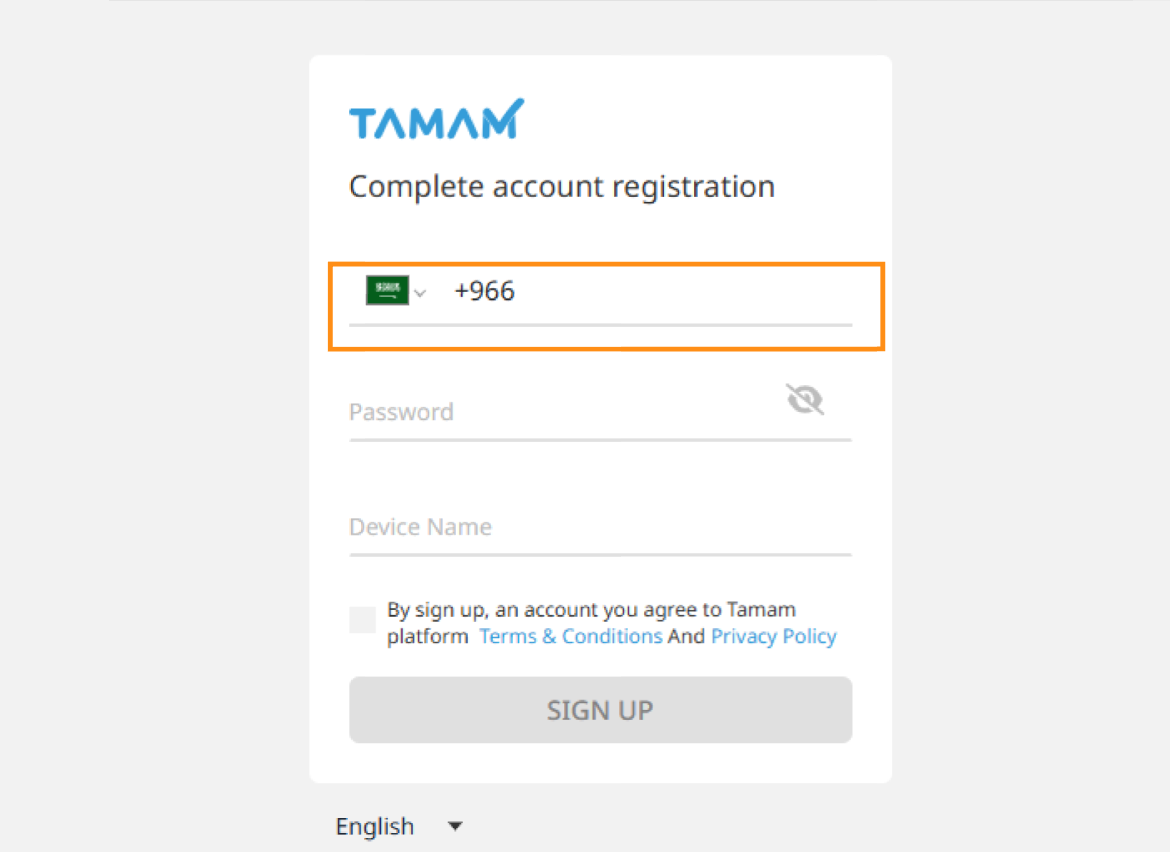
Mobile Number Entry
Enter your mobile number in this field, making sure it matches the number entered by the organization administrator when adding you as a user. You will not be able to complete the joining process if the mobile number you enter is different from the one previously registered.
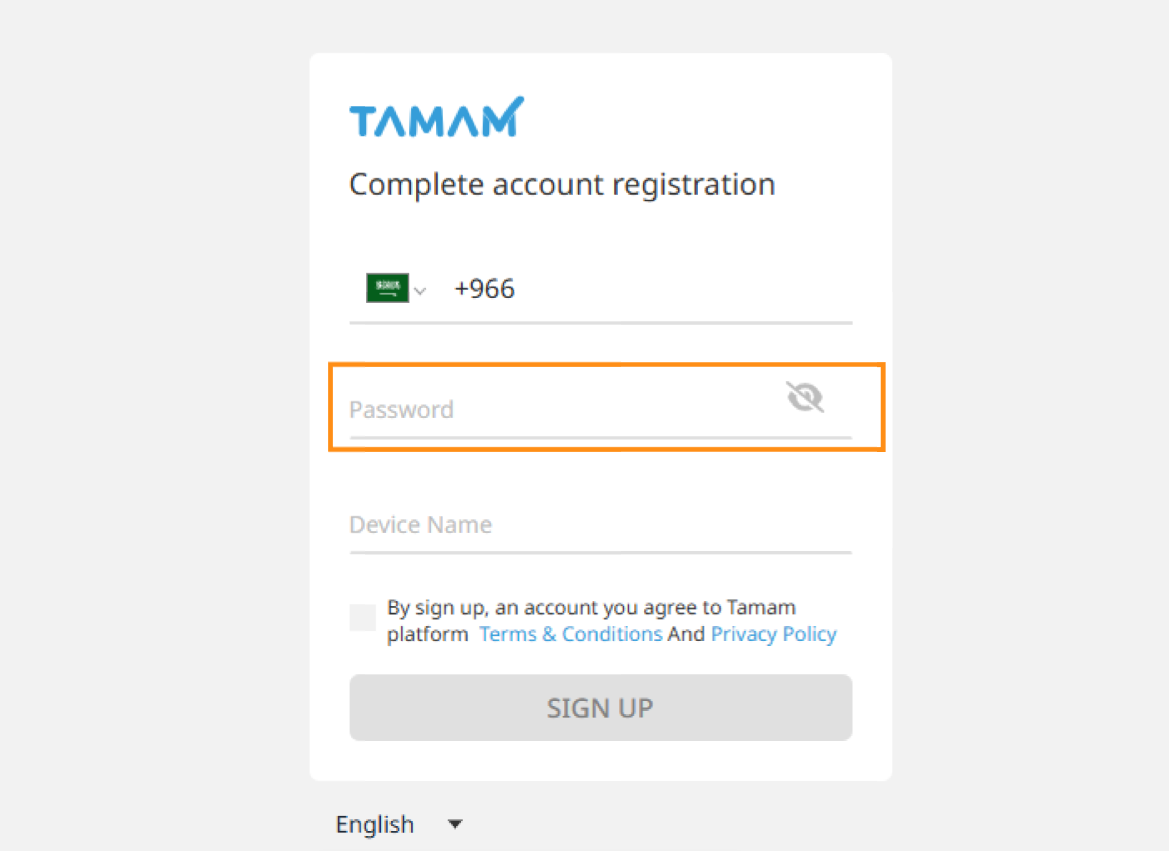
Set Password
Create a password with at least 8 characters, containing lowercase English letters and numbers.
Assign a name to your device
Enter a name for your device (of your choice) to make it easier to manage later from the list of devices authorized to sign in. A maximum of 3 registered devices is allowed per account.
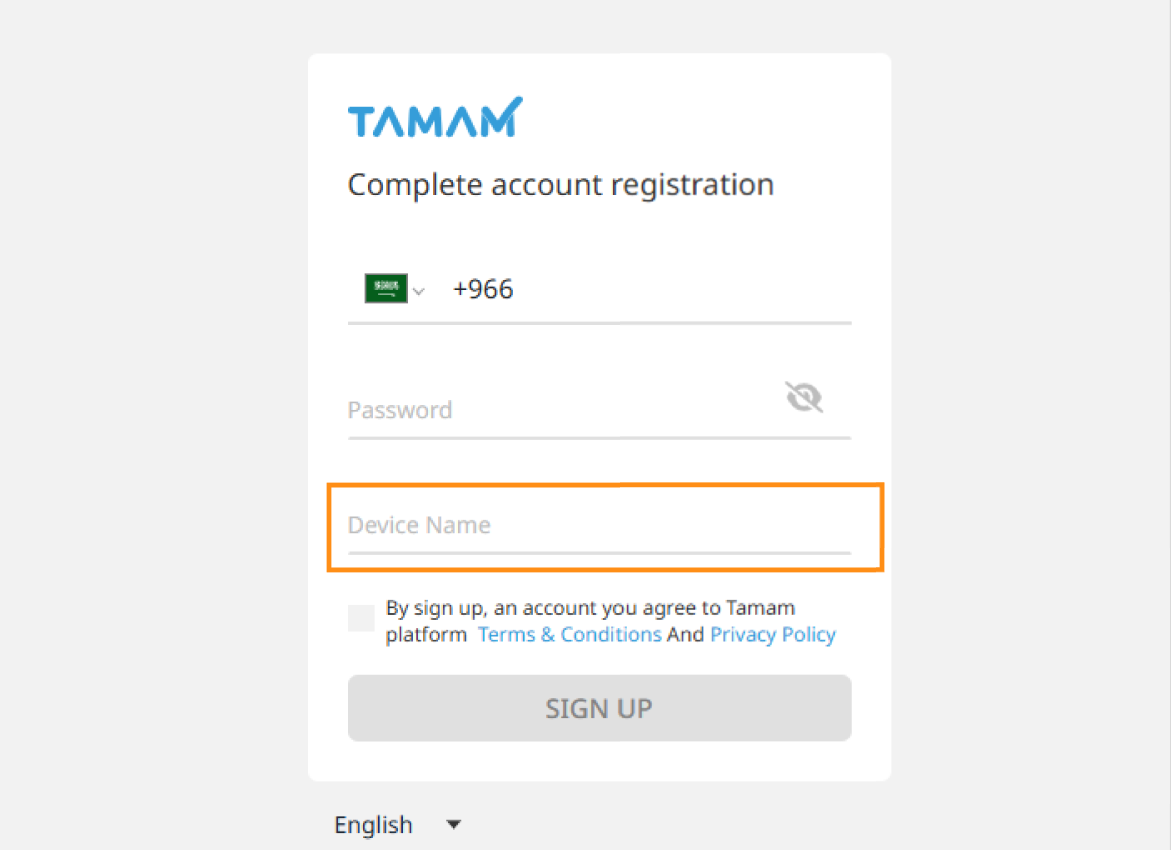
Privacy Policy and Terms & Conditions Acceptance
To complete the registration process, please review and accept Tamam's Privacy Policy and Terms & Conditions, then click the "SIGN UP" button.